

Configure Single Sign-On (SSO) for Microsoft Entra ID
Single sign-on (SSO) lets ALTR administrators sign into the ALTR platform with their Microsoft Entra ID credentials instead of a separate ALTR username, password, and two-factor authentication method. ALTR supports SSO with Microsoft Entra ID through Security Assertion Markup Language (SAML) 2.0. For what SSO controls at the platform level, see SSO and SCIM.
SSO authenticates existing ALTR administrators; it does not create them. Add your administrators in ALTR before you enable SSO.
When enabling SSO, make sure you have:
- Administrator access to your identity provider.
- Super Administrator access to your ALTR account. To check your role, see Administrators.
Configure SSO with Microsoft Entra ID
Section titled “Configure SSO with Microsoft Entra ID”By default, Microsoft Entra ID and ALTR match users on UserPrincipalName and Username. SSO can be configured to match on another field, such as email; for help customizing the identifier, contact ALTR Support.
To configure SSO with Microsoft Entra ID:
- Sign into Microsoft Entra ID as an administrator.
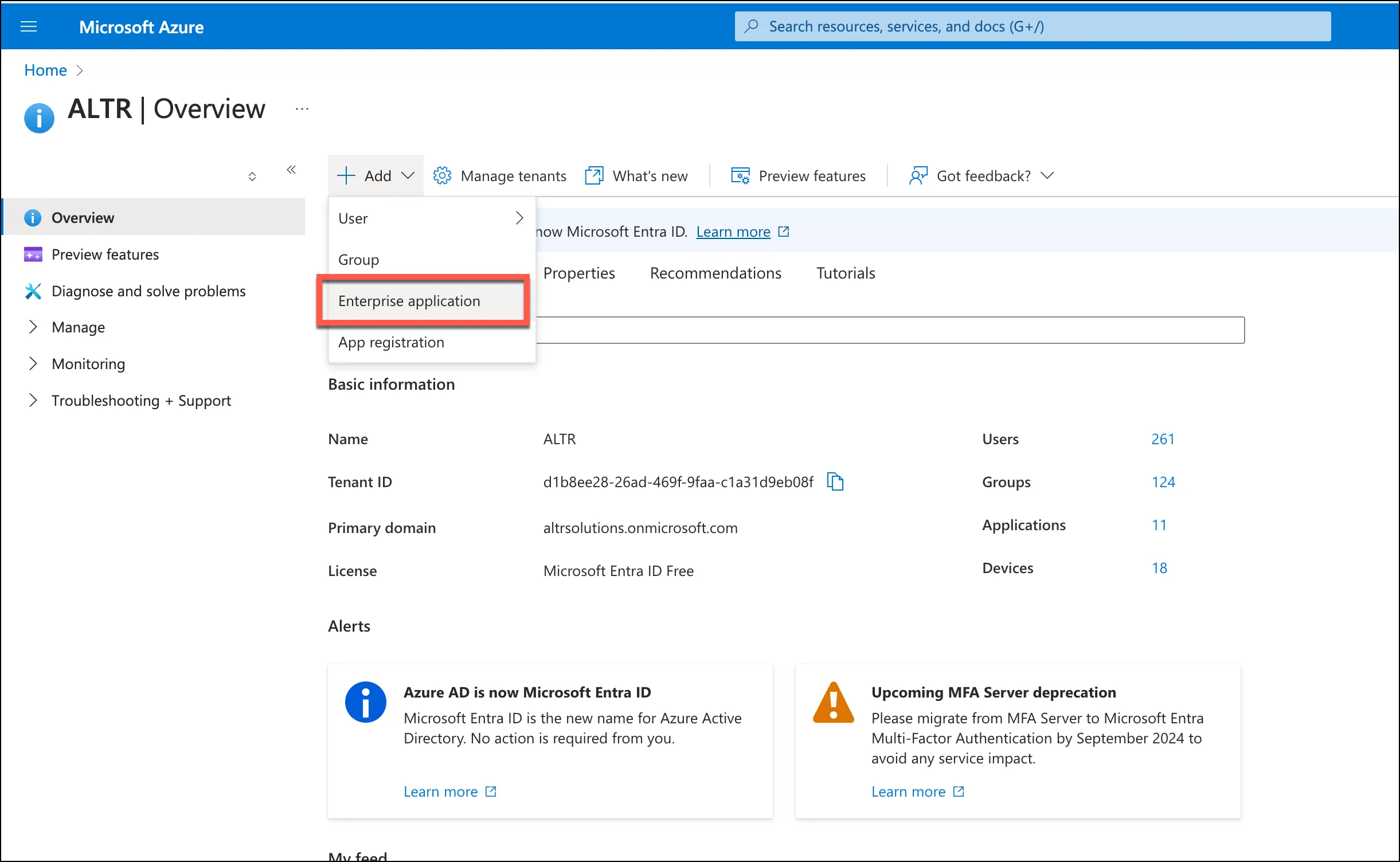
- Select Add > Enterprise application to create a new enterprise application.
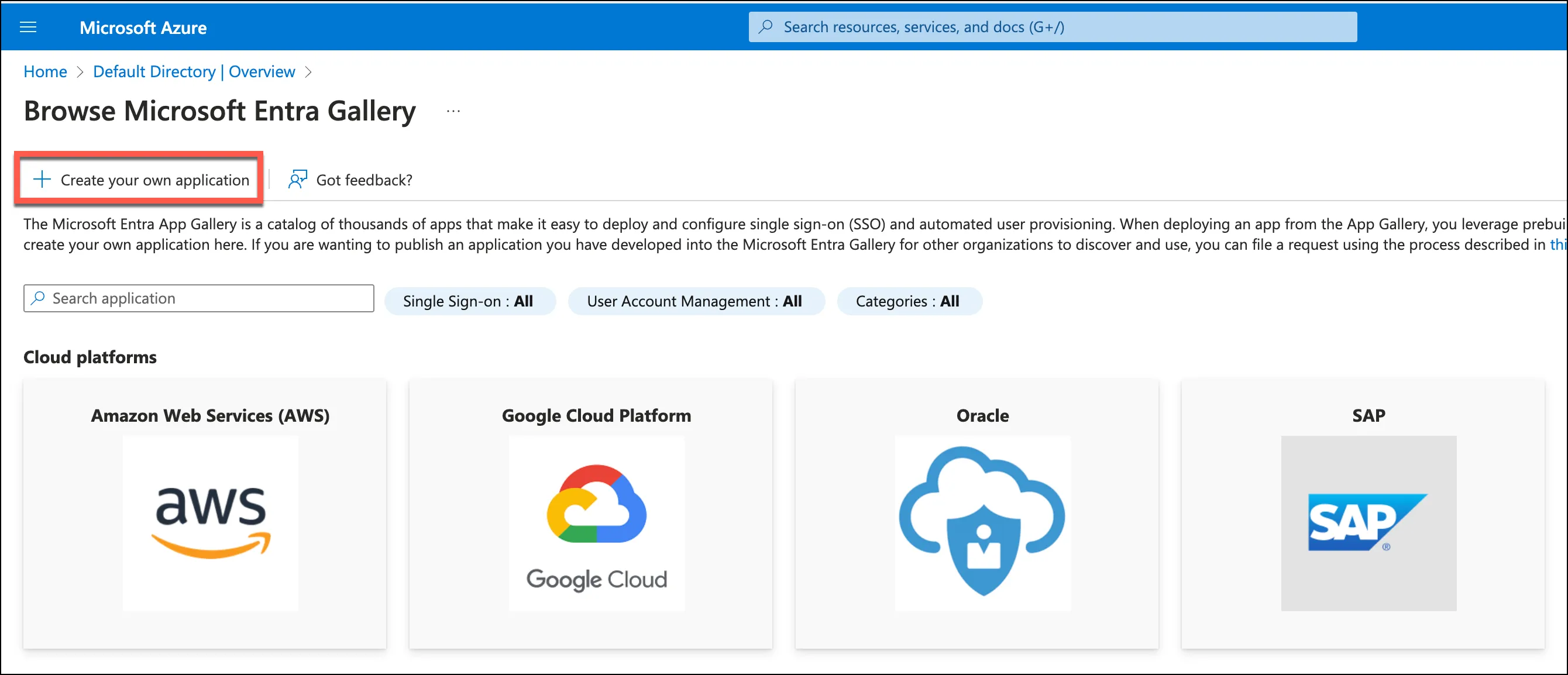
- Click Create your own application. Assign a name to your application (for example, “ALTR”) and select the Non-gallery application option.
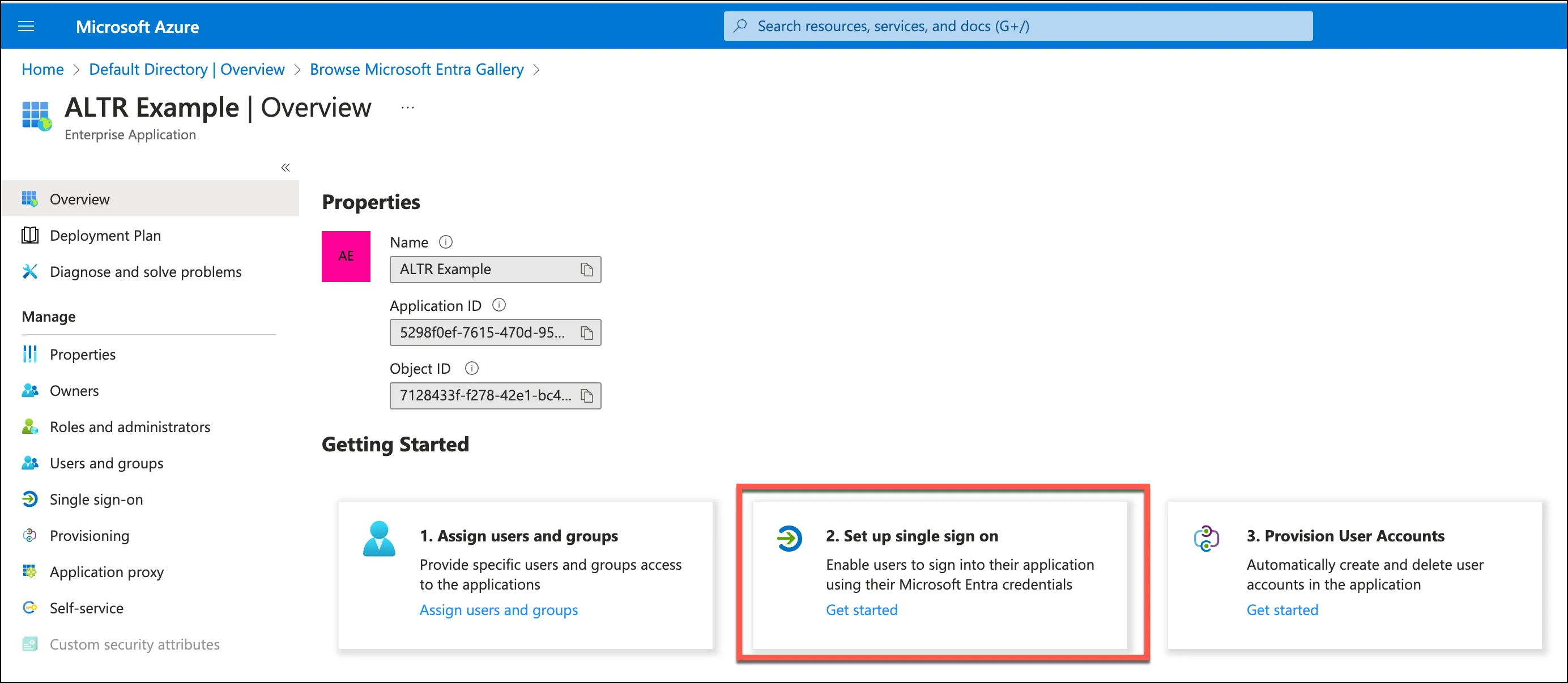
- Once the application is created, go to its Overview page. Select Set up single sign-on.
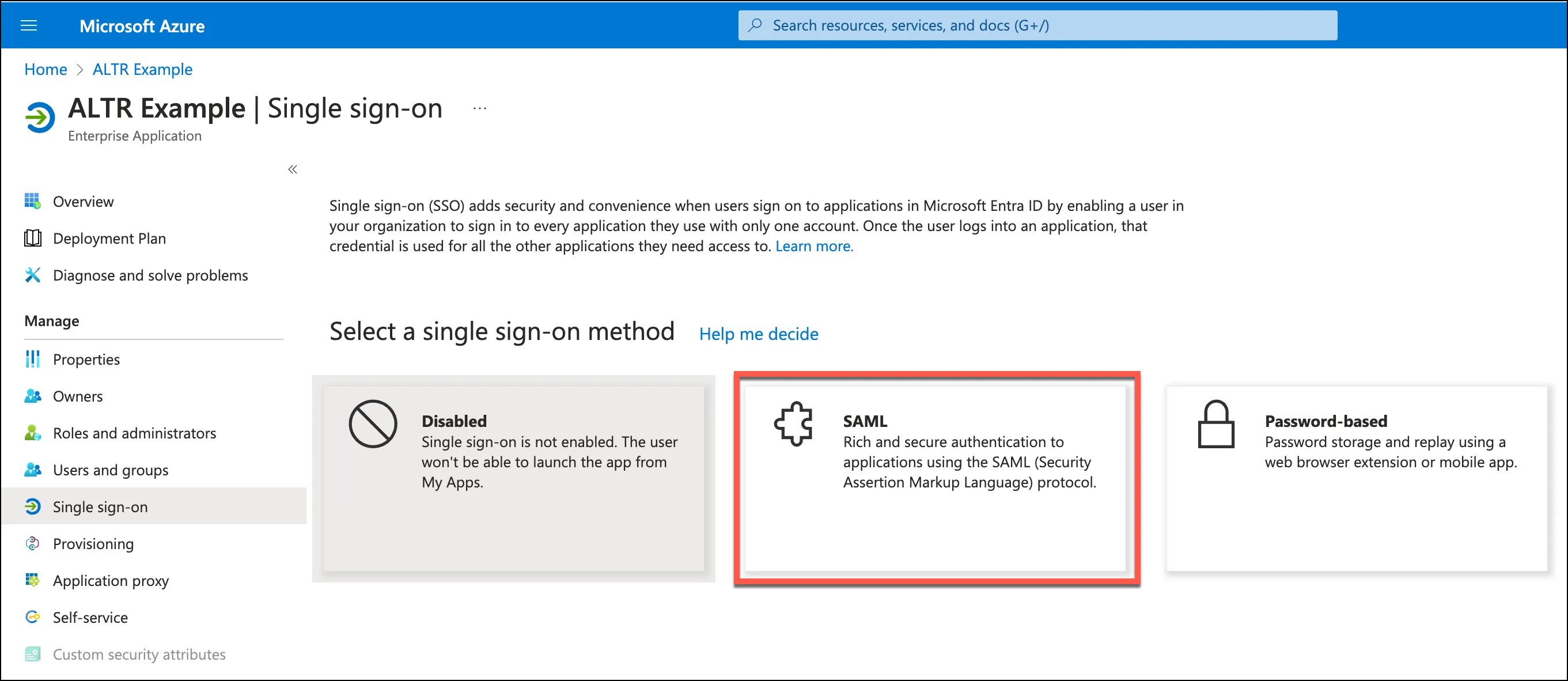
- Select SAML from the list of single sign-on methods.
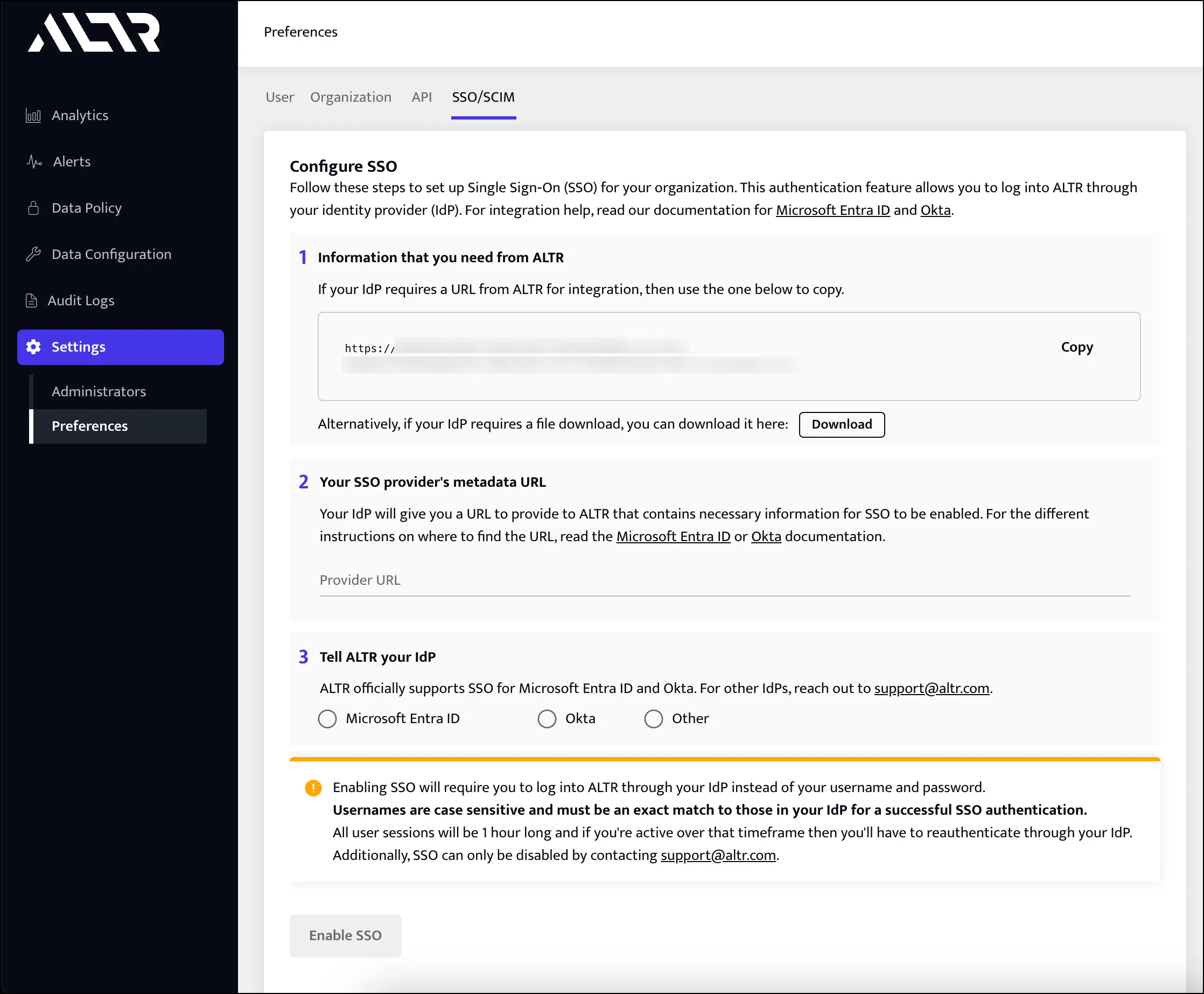
- Sign into your ALTR account. Select Settings > Preferences in the navigation menu. Click the SSO/SCIM tab. Click Download.
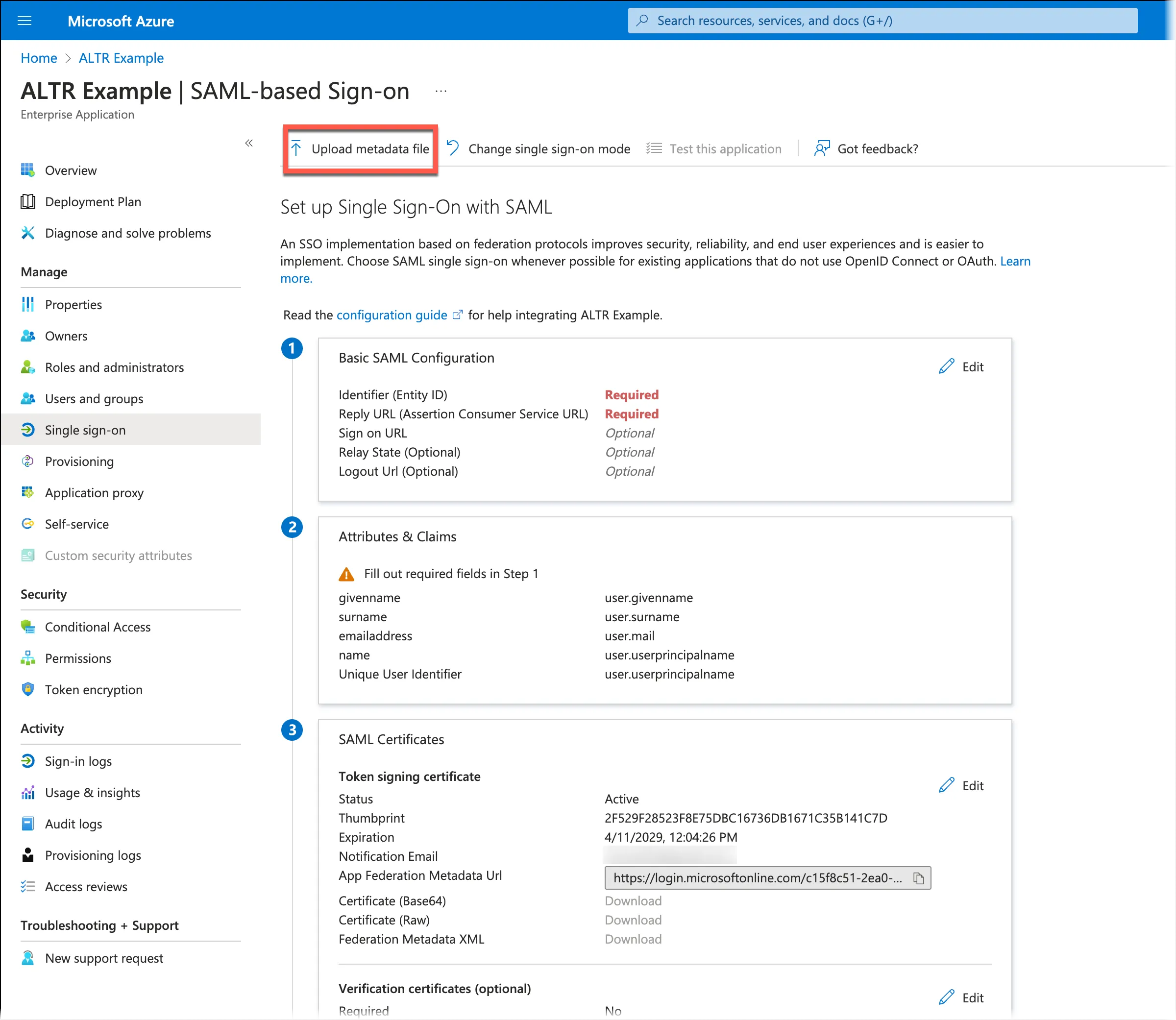
- Return to Microsoft Entra ID and click Upload metadata file. Upload the file you downloaded from ALTR. Click Add.
- Provision your ALTR administrators to your Microsoft Entra ID application.
- In Microsoft Entra ID, go to your ALTR enterprise application.
- Go to the Users and groups section.
- Search for and select your user.
- Identify your UserPrincipalName.
- In ALTR, select Settings > Administrators in the navigation menu.
- Ensure your ALTR Username exactly matches your UserPrincipalName in Microsoft Entra ID. The match is case-sensitive. If your ALTR Username does not exactly match your UserPrincipalName, you will not be able to sign into ALTR.
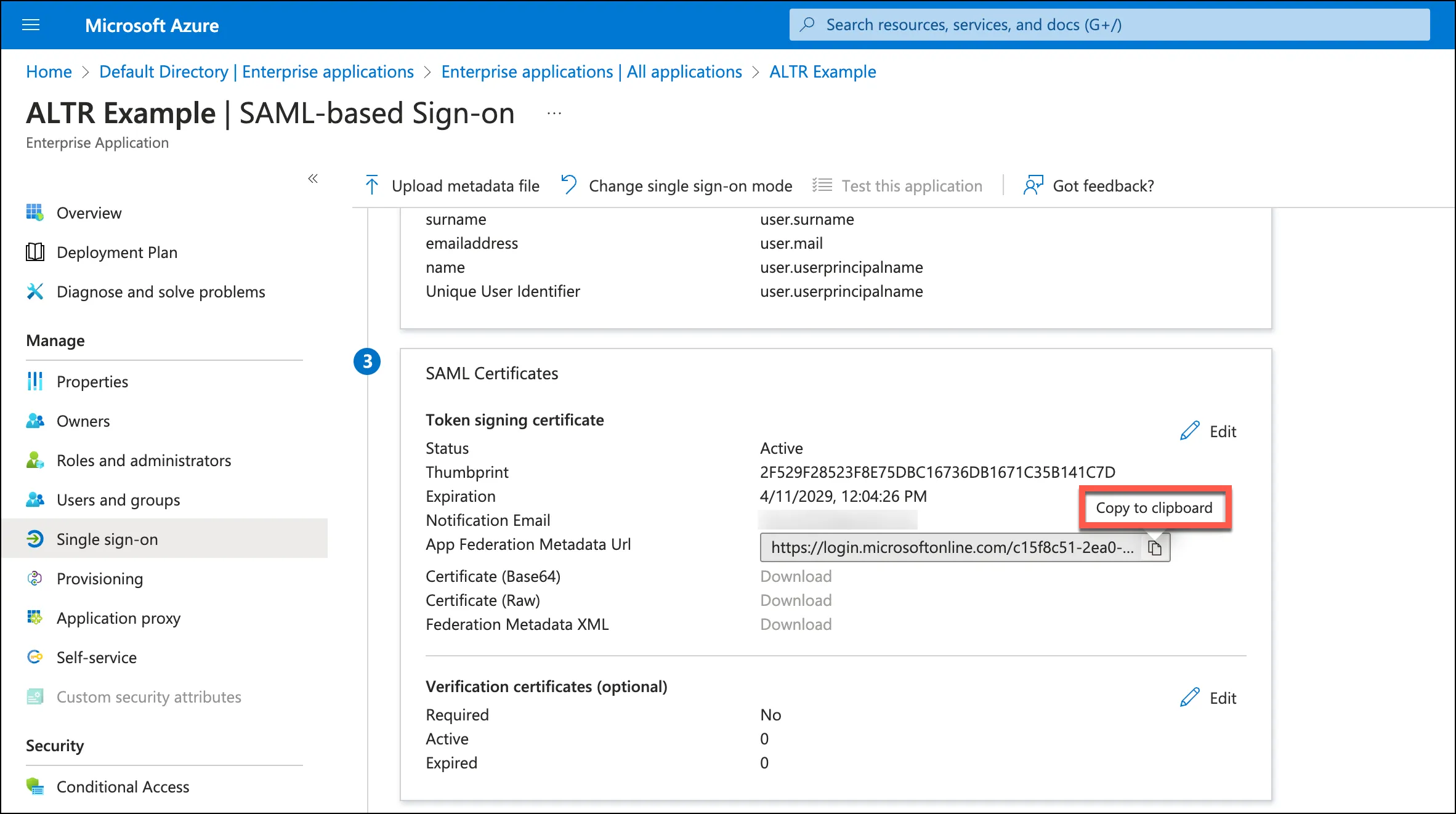
- Go to the SAML Certificates section in Microsoft Entra ID. Click the Copy to clipboard icon in the App Federation Metadata URL field. Paste this URL into the Provider URL field in ALTR.
- Return to ALTR. Select Microsoft Entra ID. Click Enable SSO.
- After ALTR configures SSO, keep your current window open, open an incognito window or a different browser, and sign into your ALTR account. Do not sign out of ALTR in your main window until you have confirmed you can sign into ALTR in the second window.